
Auto-Rotate & Sensor Test
Is it the sensor or a setting? Turn your phone and watch whether the sensors see the turn, and whether the screen follows.
How to use
- 1Tap Start sensor test. On iPhone, tap Allow when Safari asks for motion access.
- 2Check the three boxes: accelerometer, gyroscope and compass should each say Working.
- 3Hold the phone upright, then turn it sideways and back.
- 4Watch the two boxes: “Sensor says” and “Screen shows”. If the sensor says Landscape but the screen stays Portrait, a setting is blocking rotation.
- 5Tilt the phone slowly in every direction. The bubble and the numbers should move smoothly. Readings that freeze or jump suggest a sensor fault.
How auto-rotate works
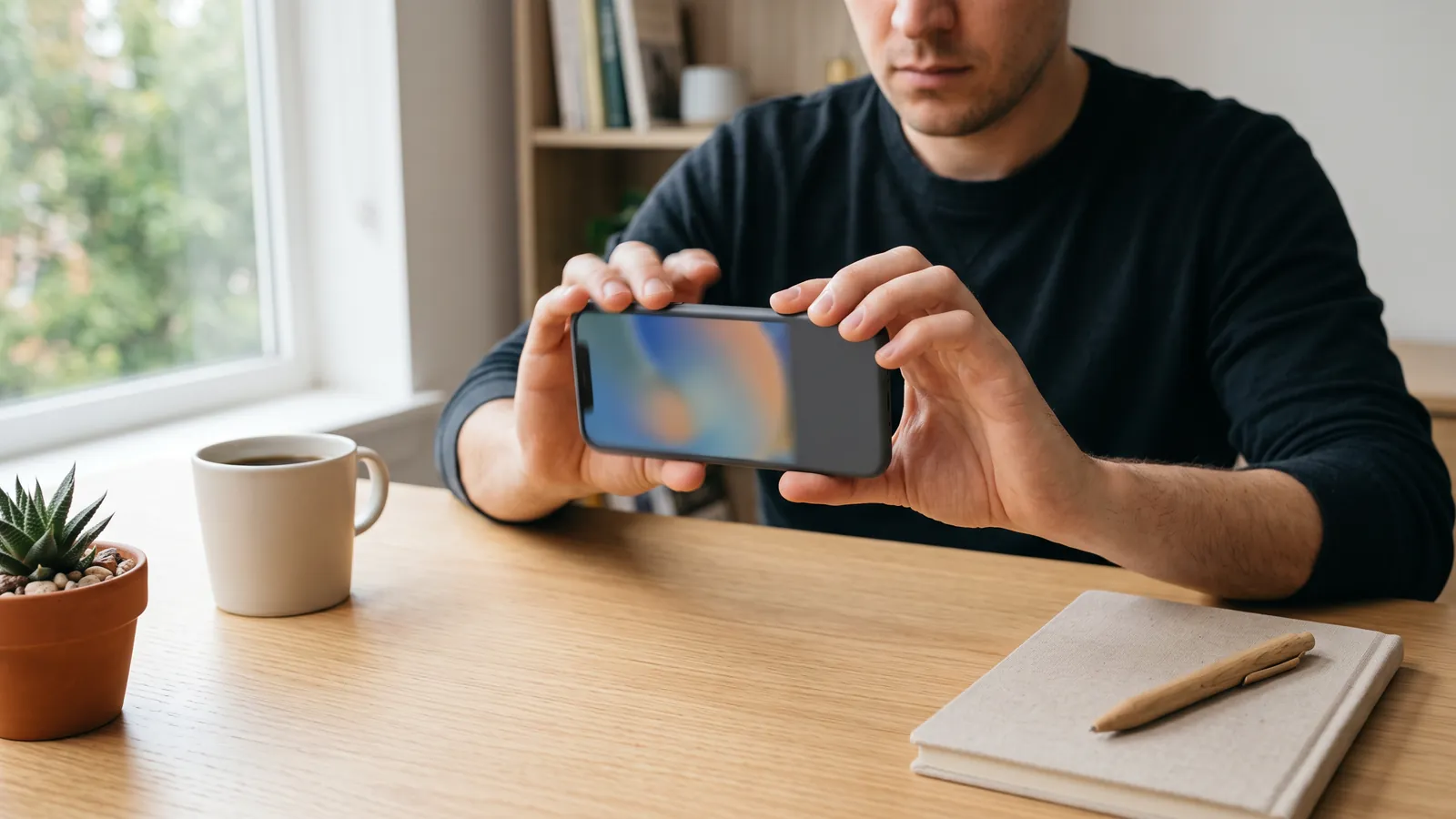
Your phone knows which way is down from its accelerometer, which feels gravity. When gravity starts pulling along the long side of the phone instead of the short side, the system turns the screen. The gyroscope measures how fast the phone is turning and smooths things out. The compass (magnetometer) is used for maps and isn't needed for rotation.
So if the accelerometer works, the phone can rotate the screen. When it doesn't, the cause is usually a setting or an app, not broken hardware. This test shows you which.
Sensor sees the turn but the screen doesn't rotate
This is the most common result, and it means a setting is in the way. Menu names differ by model and software version.
Android
Swipe down to Quick Settings and turn on Auto-rotate. On Samsung Galaxy phones the tile shows “Portrait” when rotation is locked: tap it so it says Auto rotate. On Pixel phones it's also under Settings › Display › Auto-rotate screen.
The home screen often stays upright even when auto-rotate is on. On Samsung, turn on Settings › Home screen › Rotate to landscape mode. On Pixel, touch and hold the home screen, open Home settings and turn on home screen rotation.
iPhone
Open Control Center and check Portrait Orientation Lock (the lock with a circular arrow). If it's highlighted, tap it to turn it off. Apple notes that some apps don't support landscape, and the Home Screen doesn't rotate on most iPhone models.
One app won't rotate
Many apps only work in portrait, and video apps often rotate only when a video is full-screen. If rotation works everywhere else, the app is the reason. Updating it or closing and reopening it can help if it used to rotate.
When the sensor shows no data or wrong data
- No data at all on a phone: try Chrome or Safari instead of a browser built into another app, and check that motion sensors aren't blocked for websites (Chrome: Site settings › Motion sensors).
- Restart the phone. A stuck sensor service is often cleared by a restart.
- Remove magnetic mounts, magnetic cases and wallet cases with magnets. They can upset the compass and, on some phones, rotation.
- Install system updates. Rotation bugs after an update are usually fixed in the next one.
- On Android, start in safe mode. If rotation works there, a recently installed app is interfering.
- If the readings stay frozen or jump around after all this, especially after a drop, the sensor may be damaged. That's a repair job.
About compass calibration
If the heading looks wrong, move away from metal, speakers and magnets. On Android, Google Maps shows a calibration prompt when the compass is uncertain, usually asking you to move the phone in a figure-of-eight. iPhones calibrate the compass themselves. Calibration doesn't affect auto-rotate.
Frequently asked questions
Why is my auto-rotate not working?
Usually rotation lock is on, home screen rotation is off, or the app only supports portrait. If this test shows the sensor seeing the turn, it's a setting.
How do I test my gyroscope?
Tap Start sensor test and rotate the phone. The gyroscope box turns to Working and the rotation speed changes as you turn.
Why does it say no sensor data?
Computers usually have no motion sensors. On a phone, use Chrome or Safari, allow motion access, and check sensors aren't blocked for websites.
Can a broken screen protector stop rotation?
No. Rotation comes from sensors inside the phone, not the screen. A magnetic case or mount can interfere with the compass, though.
Does this work on iPhone?
Yes. Safari asks for motion access the first time; tap Allow.
Related tools
Touch Screen Test
Swipe over a full-screen grid to find unresponsive areas and count touch points.
Vibration Test
Check your vibration motor with short, long and pattern buzzes.
Dead Pixel & Screen Test
Cycle full-screen colours to spot dead, stuck or discoloured pixels.