
Proximity sensor not working during calls: how to fix it
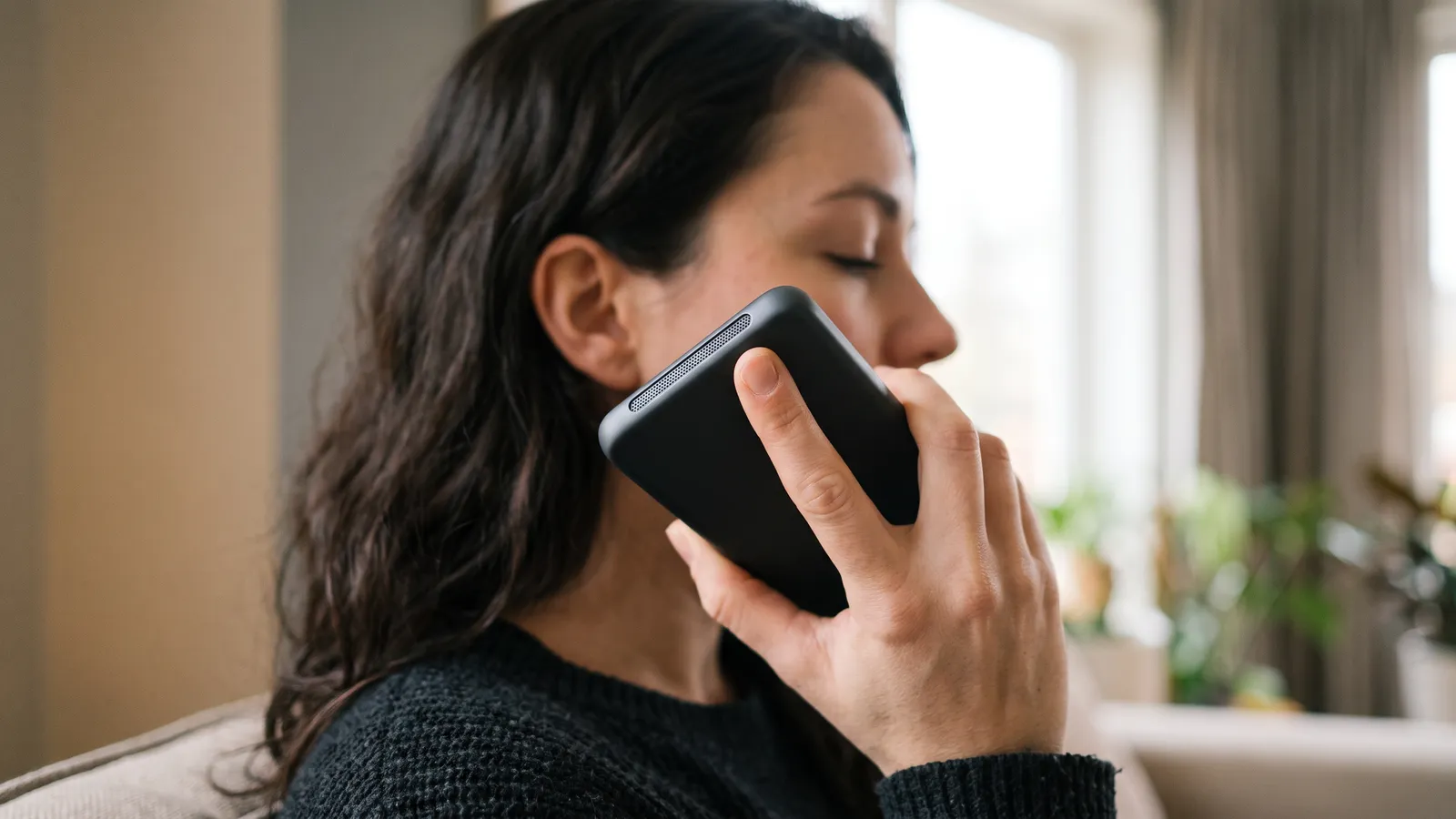
On a call, your phone should turn the screen off when it’s at your ear and wake it when you pull it away. When it doesn’t, you get cheek taps, hung-up calls, or a screen that stays black. The cause is usually something covering the sensor, not a dead phone.
Open the Touch Screen TestWhat the proximity sensor does
The proximity sensor sits near the earpiece at the top of the screen. During a regular call it detects your face, switches the display off and ignores touches. Samsung notes that it can’t be switched off in settings, and that on some phones you may see a small blinking pixel while it is active.
It does not work on speakerphone or Bluetooth calls, so test with a normal handset call.
Quick fixes that solve most cases
- Take off the case, any film or sticker over the top of the screen, and the screen protector. Apple’s guidance for a screen that stays black after a call is to remove the case and any protective or antiglare film, then restart. Samsung also says third-party films, cases, stickers or glass protectors may block the sensor.
- Wipe the top edge of the screen with a soft, dry cloth. Dirt, skin oil and bubbles can block it.
- Restart the phone.
- Install the latest software update.
- Test again on a normal call, not speakerphone.
Proximity sensor not working after a tempered glass protector
This is the most common cause. A protector with a thick black border, no cut-out, or one fitted slightly too high can cover the sensor window. Peel it off and make a call. If the screen behaves, the protector is the problem.
Fit a new one made for your exact model, with the sensor area left clear, and make sure there are no bubbles over the top edge. Samsung recommends using Samsung-approved accessories.
Proximity sensor not working after a screen replacement
If the problem started right after a screen repair, the likely causes are the repair, not the phone: the sensor part not reconnected or misaligned, a protective film left over the sensor window, or a replacement display that doesn’t pass the sensor through properly. This is an inference from the timing, not a certainty.
Go back to the repair shop and ask them to check it. On an iPhone, Settings > General > About > Parts & Service History can show whether a part is Genuine, Used or Unknown, which helps explain a fault after a repair. Apple says it shows only when a part has been replaced.
iPhone
- Remove the case and screen protector, clean the area near the earpiece and camera, then restart.
- Update iOS in Settings > General > Software Update.
- If it still fails with nothing on the phone, contact Apple Support or an authorised repairer for a diagnostic, because the sensor itself may be faulty.
Samsung Galaxy
- Remove protectors, cases and stickers, clean the top of the screen and restart.
- If the screen doesn’t turn on after a call, Samsung suggests turning off “Double tap to turn on screen”.
- Run the sensor test in the Samsung Members app: open it, tap Diagnostics, and run the proximity recognition test. See our phone test codes guide for details.
- Update the software.
Xiaomi, Redmi and POCO
We could not load Xiaomi’s own support page for this fault, so we don’t list steps we could not check. The fixes above apply to any phone: remove protectors, clean, restart, update. Xiaomi phones also have a hardware detection menu that covers the sensors; our phone test codes guide explains how to reach it and which codes are documented.
OnePlus
OnePlus doesn’t publish a proximity-sensor test we could verify, so treat the general steps as the route: remove the protector and case, clean the top edge, restart, update, and test on a normal call. If a different protector or no protector makes no difference, the sensor or its connector is likely faulty and needs a repair.
When it’s a hardware fault
If the screen misbehaves with no case or protector, after a restart and update, in Safe mode on Android, and on a normal call, the sensor or its cable is probably faulty. Take it to the manufacturer or a reputable repair shop. If a drop or liquid came first, also read our water and charging port guides. PhoneTools is not affiliated with Apple, Samsung, Xiaomi or OnePlus.
Related guides

Phone mic not working in calls but works on speaker? How to fix it
People can’t hear you on calls but your mic works elsewhere? Learn which mic does what, how to test each one, and the settings, cases and apps to check.
Phone test codes by brand: which secret codes still work
Dial codes that open a hardware test menu on Samsung, Xiaomi, realme, OnePlus, Motorola, Pixel and iPhone — which ones still work, and which are long dead.
How to check a used phone before buying: a 10-minute checklist
Buying a second-hand iPhone or Android? A 10-minute checklist: locks, IMEI, battery, screen, touch, sound, charging and water damage, with free browser tests.
Frequently asked questions
Why does my screen stay black during calls?
The phone thinks something is still near the sensor. A case, film or protector over the top of the screen, dirt on the sensor window or a software glitch is the usual cause. Remove accessories, clean the top edge and restart.
Why does my screen stay on during calls and my cheek presses buttons?
The sensor isn’t detecting your face. Remove the screen protector, clean the top of the screen, update the software and test on a normal call, not speakerphone.
Can I turn the proximity sensor off?
Samsung says it can’t be disabled in settings. If it’s the screen turning off that annoys you, it’s working as designed.
Does a screen protector block the proximity sensor?
It can, if it’s thick, has a heavy black border or covers the sensor window. Samsung and Apple both advise removing it as a first test.
My proximity sensor broke after a screen replacement. Who fixes it?
Go back to the shop that did the repair. A misaligned or unconnected sensor part, or leftover film, is a likely cause.